What Is a Binary File? How It Differs from a Text File
What is a binary file? Learn how it differs from a text file, compare actual bytes, and understand why translating them may not reveal readable text.
- File Formats
- Text Encoding
On this page
The distinction between text and binary is about how the file’s content can be interpreted.
The term “binary” may refer to executable programs, but not necessarily so. Some binary files are images or sounds; others are compressed versions of other files.
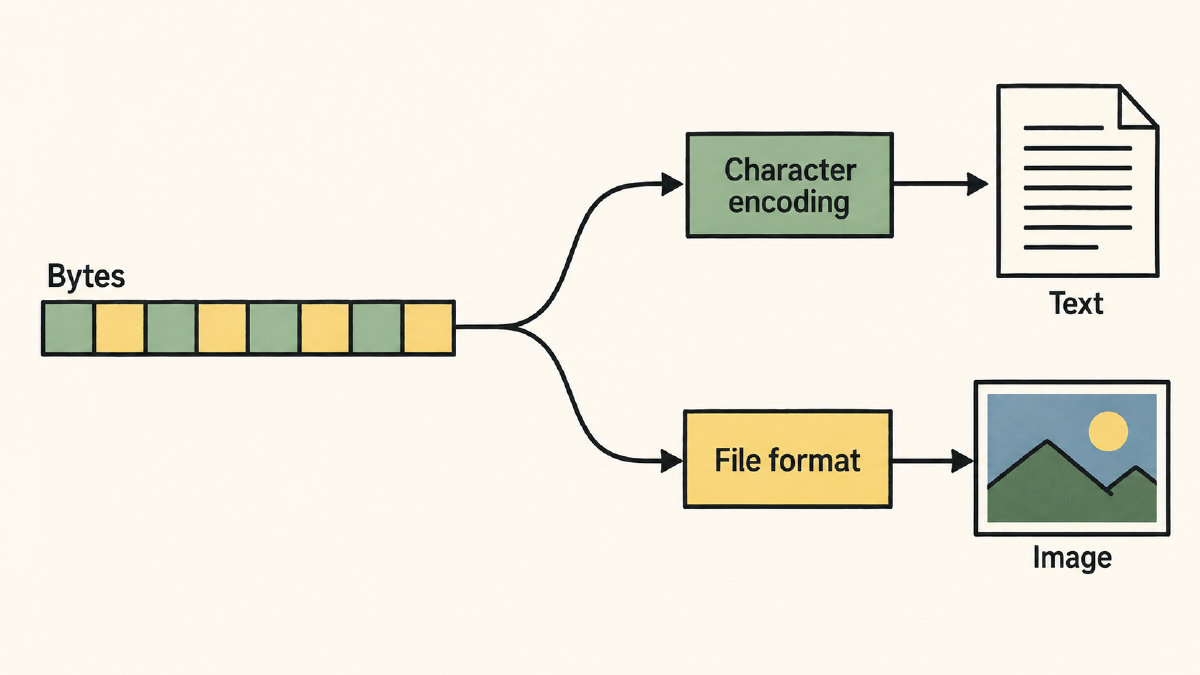
A text file uses a character encoding to represent the characters that appear on your screen. A binary file requires decoding the bits using more than just a character encoding — it needs a structure to decode its data.
Text
All computer files store bits. However, those bits are usually organized in a way that makes sense to humans. For example, a text file contains text represented through a character encoding like ASCII. In contrast, a binary file doesn’t contain data that can be easily understood by reading individual characters. Instead, it contains arbitrary bytes that need more than a simple character decoding to interpret them.
Some files contain both text and binary data: older Microsoft Word document files, for instance. Such files tend to be classified as binary because a text-only application cannot interpret their binary formatting information. HTML, on the other hand, remains text even when an application cannot interpret its markup.
Binary Files
You might think that all compiled applications are binary files. While that’s true, there are many examples where non-program files are also considered binary files.
For example, you might consider images or sound files as binary because they don’t consist of printable characters, although they are typically not executable. Similarly, compressed versions of other files (like zip files) are also binary files.
It should be clear by now that merely being a binary file does not mean that a program can run. What determines if a file is executable or not is a separate classification issue.
Character Encoding
One thing that may help with differentiating between text and binary files is understanding what character encoding is. When dealing with numbers, we often have numeric representations. However, a character encoding allows us to express these numbers as something more readable. This is done using either 8-bit bytes or higher values. Here’s an example:
Take the number 250. We can express it as 250 decimal, FA hexadecimal (0xFA), or 11111010 binary. However, the meaning depends upon how it was encoded.
The value of 250 can be expressed as either two ASCII characters (ASCII defines 0–127) — “2” and “5” (0x32, 0x35), followed by “0” (0x30). So 250 would require three ASCII characters: “250.” In UTF-8, it would use the same three bytes: 0x32, 0x35, 0x30. That’s still only three bytes. Alternatively, a possible binary representation of 250 could be 11111010, which would take a single byte.
This example illustrates the point that the same apparent value can be stored in different ways and require a different interpretation.
Structured Data Formats
Now imagine you open a PNG file in your favorite text editor. Inside the image, you’ll see letters that seem perfectly readable. But why isn’t this an example of text?
There are several reasons. First, there is the signature, or magic bytes, of the file. For PNGs, this consists of eight bytes, in decimal: 137 80 78 71 13 10 26 10. You probably wouldn’t recognize this sequence at first glance. But the signature indicates that this is a single PNG image. Furthermore, the following chunks within the file follow a specific order. The first chunk is IHDR, followed by a series of other chunks, ending with IEND.
Within the binary format, each chunk has a chunk type code. These codes are represented as a string, which may be either uppercase or lowercase ASCII letters. However, since the entire image is a binary format, the chunk type codes are actually fixed binary values rather than being interpreted as character strings. Therefore, the chunk types must be determined by comparing their fixed four-byte values, without character conversion. The exception is any encoded text fields that appear within the binary format itself, such as the description or comment.
As for the actual characters inside the image, they’re typically a collection of ASCII constants. Since these characters do not carry any particular meaning within the context of the image, they can simply serve as mnemonic magic numbers. If they were part of an actual text document, the letters would carry some meaning — perhaps the name of a person, a word, etc. — and that’s where their importance comes into play.
Classifying Binary Files
If you ever encounter an unfamiliar file, you may wonder whether it’s a binary file. How do you know for sure?
In Linux, you can use the file command to identify what kind of file it is. You can read its documentation with man file:
$ man file
file(1) General Commands Manual file(1)
NAME
file - determine file type
SYNOPSIS
file [OPTIONS]... FILE...
DESCRIPTION
The file command tries to determine the type of FILE. The file manual page provides documentation for this invocation, and it's important to note that this is not a reported test, but instead a documented invocation.
On a typical system, the file command tests files in the following order: filesystem tests, magic tests, and language tests. Position-sensitive identification is part of the magic tests, before the language tests. If the file remains unidentified, the command reports it as data. Its identification is not guaranteed to be correct.
But how do you know for sure? Using a hex editor or viewer is one solution — these tools allow you to inspect each byte of the file individually. You can display these bytes in hexadecimal, decimal, binary, or even as ASCII.
However, just looking at the visible bytes of the file alone will not establish what every single byte means. After all, if you’ve already read a few words of this article, you might expect that each byte of this sentence represents an ASCII letter. But that’s not always the case — you’d never look at the ASCII representation of the letters inside this article and immediately assume that each of those characters represented an ASCII constant, especially given that this article has already been written out as text.
Ultimately, the purpose of the file command is to identify a file’s type. It can also tell you about characteristics such as text encoding, line endings, or executable architecture — though further inspection may still be needed.
When Character Decoding Answers Your Question
Sometimes the question you ask will require decoding a file as a stream of text. Other times, you may need to decode the file format to get a meaningful result.
In most cases, when you ask the site’s translator to convert text to binary, it will take the typed text and generate binary code for you. Similarly, when you paste some binary code here, the translator will attempt to decode it into UTF-8 text. In these situations, the site will perform a basic translation of pasted binary code into text. As long as you understand that the site’s translator converts between binary code and UTF-8 text, then you’ll have no problem.
Of course, the translator is only interested in translating between the text formats that the site supports. So, if you’re working with an image or a document, you won’t find anything particularly useful within the site’s translator.
What About My Binary File?
In this article, I discussed the distinction between text and binary files. However, I’m sure you’re asking what about my binary file?
I suppose that the answer is going to depend on what your binary file really is. After all, the difference between a text file and a binary file depends upon how it’s structured. If the bits of your binary file are meant to be read as characters, then they’re essentially text.
So, the answer really depends upon what your binary file is supposed to do. Is it a formatted document that you want to view? Is it a picture you want to print? Or is it a file that you wish to examine to determine whether it can be used as-is, without further processing?
Sources
Try it yourself
Free, in your browser. Nothing you type is uploaded.